T3 KOde: Coding Agents on an E-Reader
I realized most of my working time was being spent reading AI output, and I already have a device that’s optimized for reading. So I built T3 KOde, a KOReader plugin for reading and replying to T3 Code threads from an e-reader.
KOReader is a free, open-source reading app made for e-ink screens. It runs on Kobo, Kindle, PocketBook, reMarkable and Cervantes e-readers, and on Android and Linux too, so T3 KOde can run anywhere KOReader does. I use it every day on a Kobo Clara BW; I haven’t tested the others yet.
T3 Code is an open-source app for working with coding agents: you start threads, watch them work, and answer when they need you. It works with Claude Code, Codex, Cursor, OpenCode and many more. Agents can also use a built-in web browser and a live iOS Simulator or Android Emulator, so you can watch them check their own work. As I write this, it’s the #5 developer tools app on the iOS App Store.
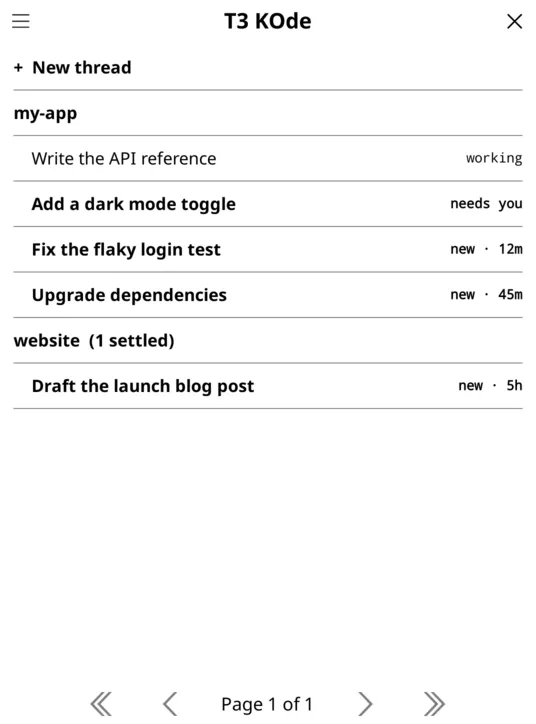
Replying with a tap
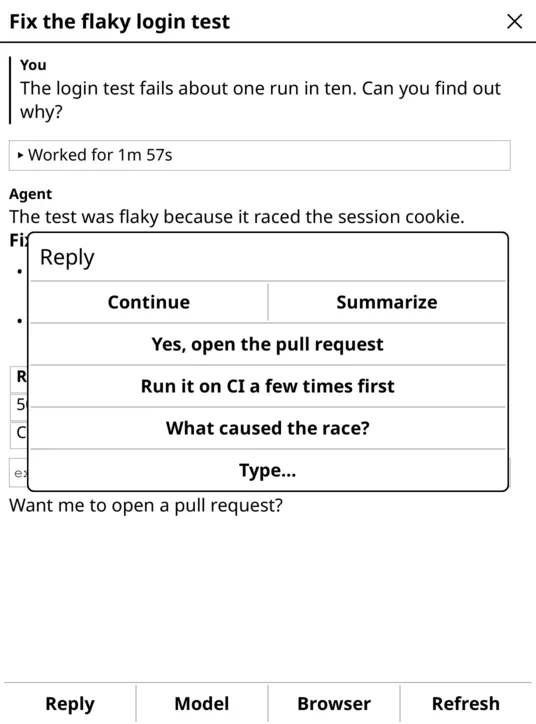
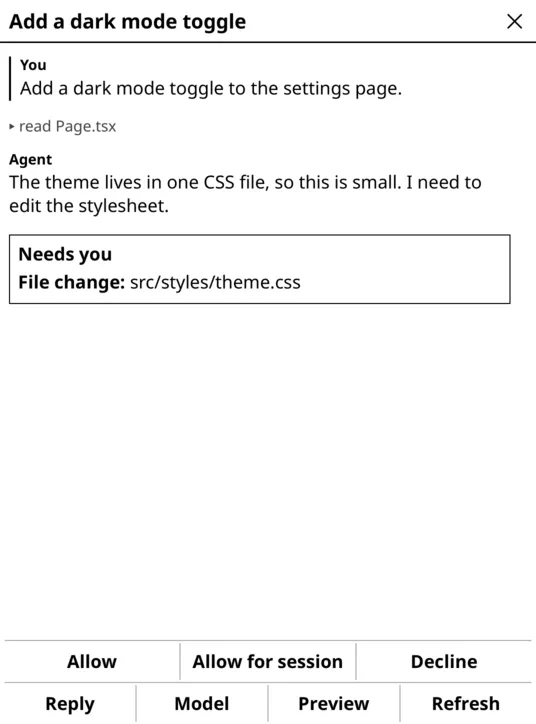
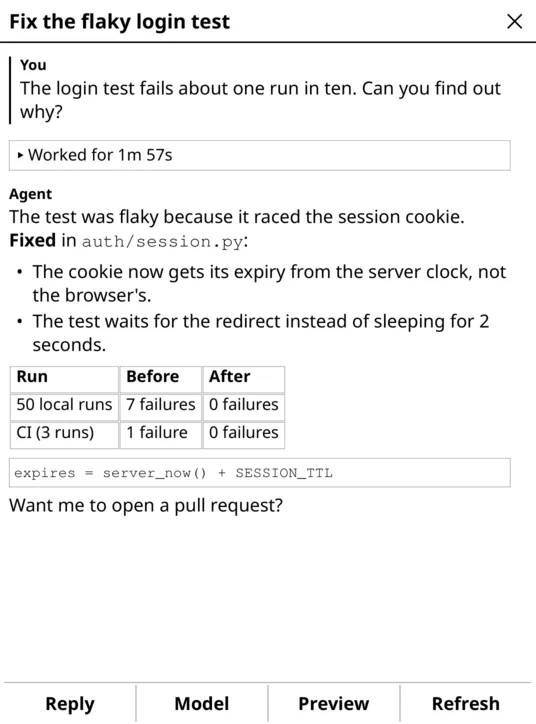
Typing on an e-ink keyboard is slow, so replying is tap-first. When the agent asks for approval, it’s a button: Allow, Allow for session, or Decline. Questions are buttons too. After each turn, a small model suggests a few likely replies, and the Reply menu offers them alongside Continue, Summarize and Stop. The keyboard is still there for everything else.
Seeing what the agent sees
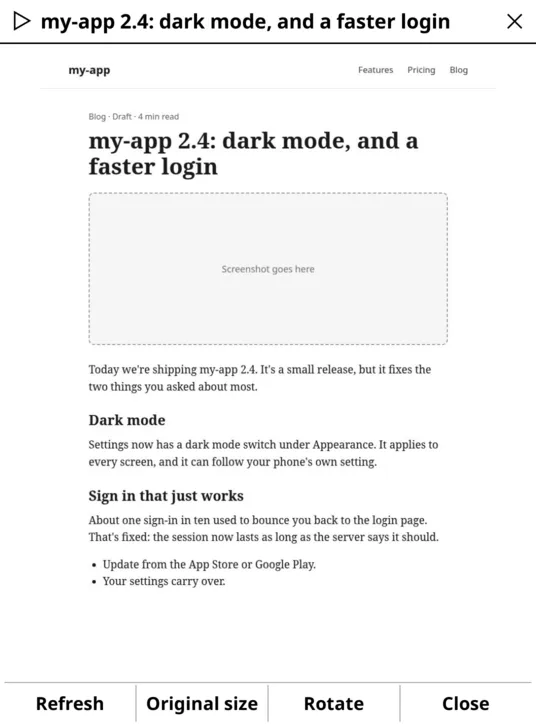
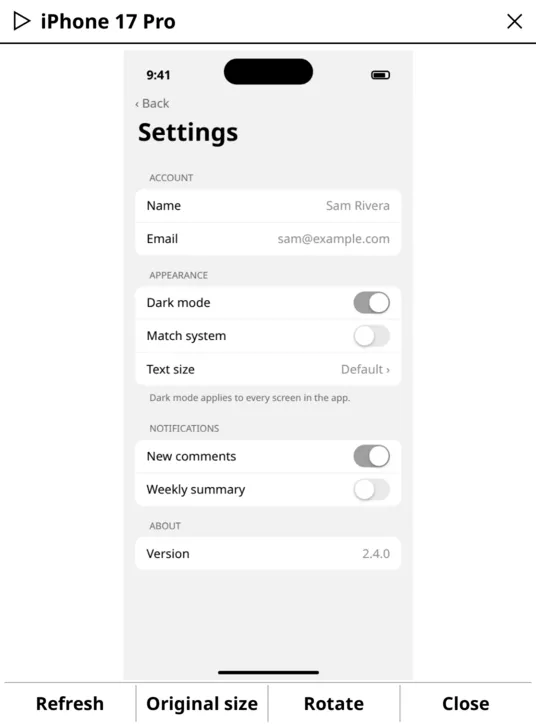
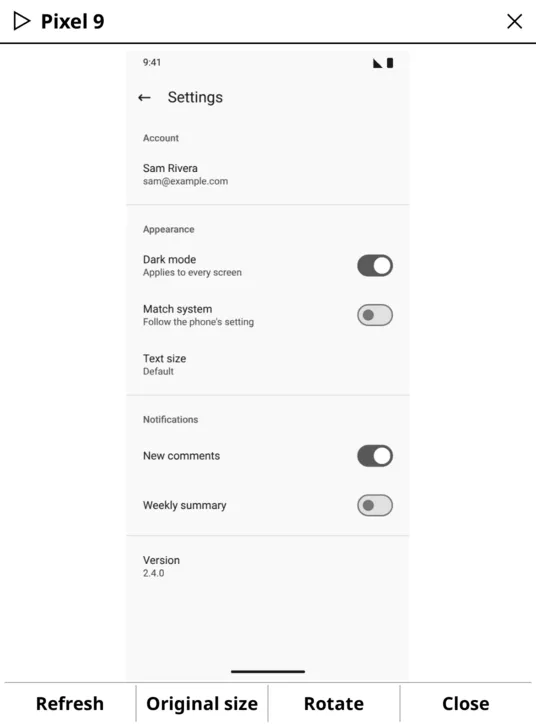
A thread’s Preview button lists its browser tabs and any iOS Simulators or Android Emulators open in it, and shows a grayscale snapshot of the one you pick. Refresh takes a new one. It’s view only: nothing is tapped or clicked, and the agent keeps control.
How it works
There are two parts. The plugin (Lua) runs in KOReader on the e-reader. The bridge (Python, standard library only) runs on the computer next to T3 Code.
e-reader (KOReader + plugin) ──HTTP/JSON──▶ bridge ──T3's API──▶ T3 CodeThe bridge holds the T3 token, talks to T3’s API, and serves the e-reader a small API designed for e-ink. That keeps the plugin thin: it’s built from KOReader’s own widgets, and all the T3-specific work happens on the bridge.
Built for e-ink
- Redraws only when something changes. E-ink refreshes are slow and flashy, so the screen redraws only when what it shows is different.
- Checking certificates itself. KOReader’s HTTPS doesn’t check certificates, so the plugin ships Mozilla’s root certificates and checks hostnames itself. The bundle is 118 certificates in about 200 KB.
Setup without typing
install-plugin sets up the e-reader over USB. It copies the plugin and writes the bridge address and token into its settings, so nobody has to type a token on an e-ink keyboard.
The e-reader can reach the bridge three ways: on the same Wi-Fi, with Tailscale on the e-reader, or through a public HTTPS tunnel.
Updating with one tap
When there’s a new release, the thread list says so. One tap updates both halves. The bridge runs the new release’s tests in a separate checkout first, and only switches if they pass. Then the plugin updates itself from the bridge.
Try it
T3 KOde is experimental, but I use it every day. The bridge uses T3’s internal API, so a T3 update can break it until the bridge catches up.
The code and setup steps are on GitHub. There’s also a demo mode with made-up threads, so you can try the plugin without setting up T3.